PasserJack help
Connect claude.ai
Add PasserJack to claude.ai as a custom connector. Claude signs in through your browser, so there is no key to paste.
Signs in through your browser.
Before you start
- A PasserJack account
- claude.ai in a browser, on any plan
- On Team and Enterprise, an Owner who can add the connector for the organisation
Show the visual walkthrough
Step by step
- Copy the MCP URL below.
- Open claude.ai and go to Customize, then Connectors.
- Press the + button, then Add custom connector.
- Give it a name, paste the URL, and press Add.
- Press Connect and approve access in the PasserJack window that opens.
- Free works with one custom connector. On Team and Enterprise an Owner adds the connector first, under Organization settings, then Connectors, and you connect it from Customize, then Connectors once it is there.
What to paste
https://passerjack.com/api/mcp
Preview the PasserJack screens
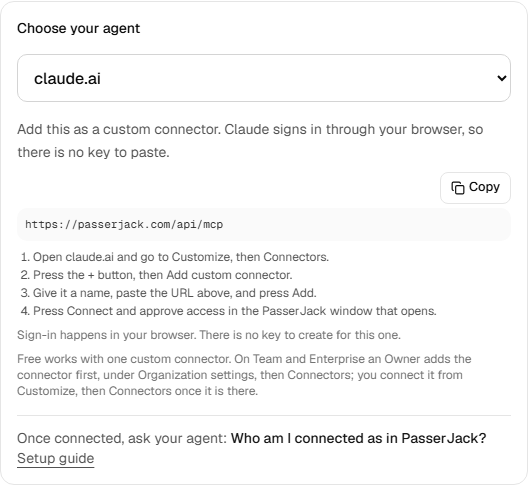
Open Agents and API keys and choose your agent. If you use an API key, each new key is shown exactly once.
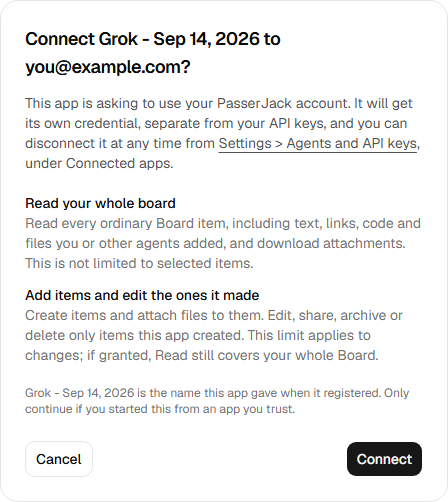
This is the screen a browser sign-in lands on. It names the app that is asking and the permissions it wants, and nothing is granted until you approve it. Read covers your whole ordinary Board, including your attachments. The default edit limit protects items the app did not create from changes; it does not hide them from reads.
Check it worked
Ask the agent: who am I connected as?
A correct answer names your account email, the key or app it is using (for example “Grok - Sep 10, 2026”), and its permissions: read, write if granted, and secrets only if you granted it. If it cannot answer, or names a different account, the connection is not made, so go back through the steps.
Granted write access? Ask it to save a short test note, then confirm that note appears on your board.
Vault reads need both secrets permission and an Unlock for agents window you explicitly open in Vault settings. That permission also includes text and extracted details from sensitive Board images without a Vault window. Review the permission and capture boundaries before granting it.
Manage or disconnect
Open PasserJack, then Settings, then Agents and API keys. That page lists your keys, the apps you have connected and your connector credentials, and you revoke any of them from there.
A revoked key stops working immediately. If a client reports an authentication error, check which account it is signed in to and whether its key was revoked before you create another.